







.png)
Jessica Kennedy
March 31, 2026
How To Use the Jasper × Adobe Workfront Integration
Send finished content from Jasper directly into Adobe Workfront, as a link, attached file, or cloud copy, so work moves from creation to approval without stalling in handoffs.

The Jasper × Adobe Workfront integration exports finished content from Jasper directly into your Workfront projects and tasks, as a link, an attached file, or a copy saved to cloud storage. This guide covers what it does, why it matters for teams running content through structured approvals, and how to set it up so work moves from creation to approval without the copy-paste tax.
Adobe Workfront is where enterprise marketing work gets governed. Intake and briefs, project timelines, proofing, multi-stage approvals, compliance sign-off, and reporting all run through it. What Workfront does not do is produce the content. So the content gets made in another tool, and then someone has to carry it across: download the draft, open the right project, drop it in the right folder, and route it to the right reviewer.
Do that across a launch with twenty deliverables, three regions, and four channels, and the carrying becomes its own job. Now picture generating that volume in one sitting with Jasper Grid. Every asset would still have to be downloaded and re-uploaded into Workfront, one at a time, before anyone could review it. At enterprise scale, that manual bridge is where the speed of AI content creation quietly disappears.
The pressure is well documented. In Adobe research across more than 1,600 marketers, 89% said content has to clear three or more approval stages, and over half said managing reviews and approvals eats up more than 40% of their time, rather than creating the content itself. The harder the approval process, the more every manual handoff between tools costs.
That manual bridge is exactly what the Adobe Workfront integration removes.
What is the Jasper × Adobe Workfront integration?
The Jasper × Adobe Workfront integration connects AI-powered, on-brand content creation in Jasper to the place your team manages and approves the work. Whether you are drafting a single brief in Canvas or generating hundreds of campaign assets in Grid, you can export finished content into the right Workfront project, the way your team wants to receive it, ready for review and approval.
No downloads. No re-uploads. No hunting for the current version.
Workfront stays the system of record for how your team plans, approves, and tracks marketing work. Jasper plugs in as the on-brand content engine that feeds it.
What moves into Workfront is generated through Jasper IQ, the layer that applies your brand voice, approved messaging, and company knowledge to every output. That matters most where approvals are strict. Content that arrives already aligned to approved language gives reviewers less to send back, so it clears brand, legal, and compliance review faster instead of bouncing through another revision cycle.
Why does the Jasper Adobe Workfront integration matter?
The cost of a disconnected workflow is not only time. It is control. A finished draft sits in someone's downloads folder. A batch of variants lands in the wrong project. A reviewer opens a file that is already a version behind the edits happening in the source. In a regulated or compliance-heavy environment, a stale version entering an approval chain is not an annoyance, it is a liability.
The integration removes that exposure. Export from Jasper and the work lands in Workfront ready to route, as the current version, in the project where review already runs. Because every piece is built through Jasper IQ, what arrives is on-brand and grounded in approved messaging, so reviewers are checking accuracy rather than rewriting voice. And because you choose how each export lands, content shows up where your approvers already work. Workfront stays the system of record for assignments, approvals, and reporting. Jasper keeps it fed with content that is ready to move.
How do you set it up?
Setup happens in three layers, and the heavy lifting only happens once. A Workfront admin creates an OAuth2 application and generates the credentials, a Jasper admin adds those credentials to turn Workfront on for the workspace, and then each person connects their own Workfront account with a single sign-in. The admin steps take a few minutes up front. After that, users connect themselves and start exporting.
Full steps, including the OAuth2 application and redirect URIs, live in the Jasper Help Center, or you can head to Workspace Settings > Integrations in Jasper to connect once your workspace is configured.
How do you send content from Jasper to Workfront?
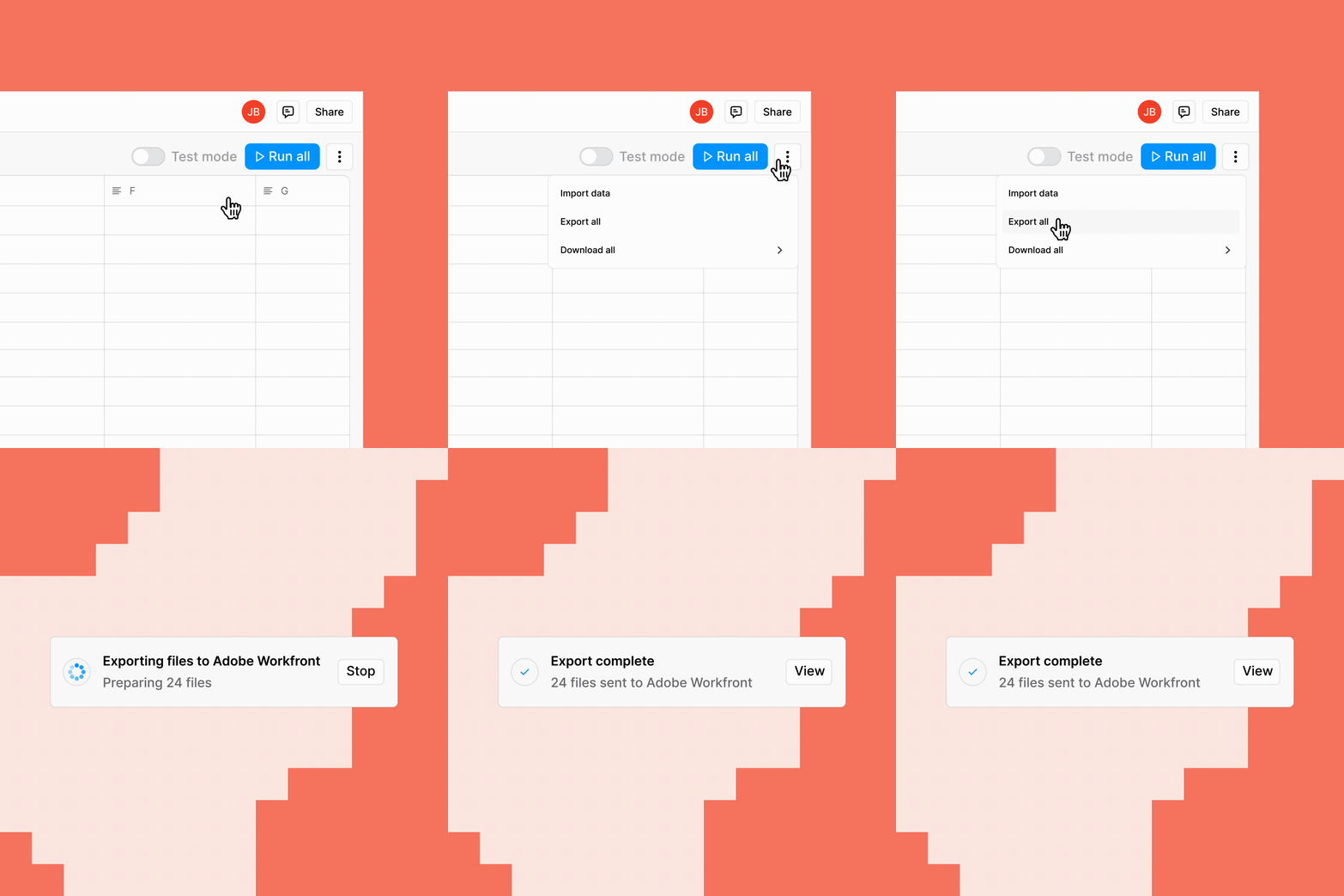
Getting started requires Open any piece in Canvas or Grid, select Export, and confirm Adobe Workfront is toggled on in the integrations panel. Click Continue, choose Adobe Workfront, then pick where the content should land: a project on its own, or a specific task within it. Leave the task field blank to export into the project's Documents folder. Sending a single asset works the same as pushing an entire Grid run. layers of setup: one at the workspace level (handled by admins) and one at the individual user level. Here's a step-by-step walkthrough.
Choose how content reaches the team
When you export to Workfront, you decide how the content travels. Three options:
- Link to the Jasper doc. A link to the live document in Jasper is added to the project or task updates, so reviewers can open the source and editors keep working in Jasper. Best when content is still moving.
- Attached file. The file is added directly to the project or task's document folder, ready for Workfront's native proofing tools, with a link to the Jasper doc added to the updates too. Best when work is final and headed into structured review.
- Save to cloud storage. The file is saved to your connected storage such as Google Drive, SharePoint, or Box, with links added back to both the Workfront task and the source Jasper doc. Best for teams that keep final assets in a central library.
If your reviews tend to splinter across email threads, comments, and one-off shared files, the cloud storage option is worth standardizing on. Sending every export to the same library keeps final assets in one place and preserves the link between the Workfront task and the source doc, so the approval trail stays intact.
How marketing teams put this to work
If your team runs content through Workfront, the integration fits the part of the job that usually creates friction: getting finished work into the system, in the right version, ready for the approvals that gate everything else. Three places it earns its keep:
Content teams running structured proofing
A content team producing at volume routes every piece through Workfront's proofing tools before it ships. Generate the content in Jasper, scaling a full batch in Grid when the campaign calls for it, then export each piece as an attached file straight into the project, where it drops into the proofing workflow. Reviewers mark up the current version in Workfront, and the link back to the Jasper doc keeps the source one click away when copy needs another pass.
Regulated and compliance-heavy teams
In financial services, healthcare, and pharma, Workfront is the orchestration layer for content governance, and nothing ships without clearing review. Draft briefs and copy in Jasper, grounded in approved messaging through Jasper IQ, then export them as attached files into the project where legal, brand, and compliance reviews already run. The approval chain starts with the right version in the right place, which is exactly what reviewers and auditors expect.
Content ops teams centralizing final assets
A content ops team keeps every finalized asset in one SharePoint or Drive library. Finish long-form content in Jasper, blogs, whitepapers, guides, then save it to cloud storage so it lands in the central library, with the Workfront task linked back to both the asset and the source. A clean handoff into multi-step review, localization, or compliance workflows.
If your team already runs on Jasper and Workfront, the bridge between creating content and getting it approved is now a single export. The draft no longer waits in a downloads folder or enters review a version behind. It lands in the project, on-brand and current, ready for the approval chain your team already trusts.
Frequently asked questions
Can I export from both Canvas and Grid?
Yes. Both Jasper Canvas and Jasper Grid export to Workfront, including large Grid runs that produce hundreds of assets in a single pass.
How does the content reach Workfront?
You have three options at export: add a link to the Jasper doc in the project or task updates, attach the file directly to the project or task's document folder, or save it to connected cloud storage such as Google Drive, SharePoint, or Box. Every option also adds a link back to the source Jasper doc.
Can I export to a specific task, or only a project?
Both. Choose a project on its own, or pick a specific task within it. To export into the project's Documents folder, leave the task field blank.
Who needs to set it up?
Setup happens in three layers. A Workfront admin creates an OAuth2 application, a Jasper admin enters those credentials under Workspace Settings > Team Integrations to enable Workfront for the workspace, then each user connects their own Workfront account under Workspace Settings > Integrations.
Ready to get started? Find more tips for connecting Jasper to Adobe Workfront in the Help Center.

More of the latest & greatest

Crawl, Walk, Run: How to Sequence Your AI Search Program
A practical framework for building AI search maturity in the right order, from accurate visibility to measurable business impact.
September 23, 2026
|
Kurt Lambert

From GEO Insight to Action: 5 Takeaways from Jasper + BCG X
How marketers can turn AI search intelligence into a continuous system for improving brand visibility.
September 11, 2026
|
Tom Newton

How To Use the Jasper × Jira Integration: Keep the Work on the Ticket That Tracks It
The Jasper Jira integration sends finished content from Jasper into a Jira issue, so the deliverable sits on the ticket your team is already tracking it with. This guide covers what it does, why it matters, and how to turn it on.
September 10, 2026
|
Jessica Kennedy